Free Handwriting Generator — Text to Handwriting Tool
Turn text into a handwriting-style preview with 6 fonts, custom ink colors, adjustable size and spacing, and a browser-based PNG download.
Direct answer
A handwritten text generator turns typed words into a handwriting-style preview. Enter text, choose one of six script or marker fonts, set the ink color, size, and line spacing, then download a PNG or copy the editable words. This tool uses fonts rather than AI handwriting synthesis, so it is best for cards, mockups, quotes, and worksheets, not signatures, identity documents, or imitation of a real person's handwriting.
Copy Text → editable words. Paste into a document or message; the destination may change the font and formatting.
Download PNG → a styled image. Keeps the handwriting font, ink and paper. Edit your wording here before exporting.
Copy and paste vs PNG: the same words, two outputs
Editable text
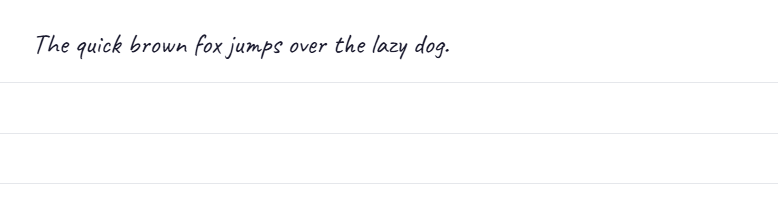
The quick brown fox jumps over the lazy dog.
A plain-text paste keeps the words. Select a handwriting font again in your editor if it supports one.
PNG from this tool
What Is a Handwritten Text Generator?
A handwritten text generator converts typed text into consistent handwriting-style output using specialized fonts. Instead of writing by hand and scanning the result, you can instantly preview your text in cursive, script, or pen-style typefaces and use the output for cards, notes, social media posts, or design projects.
Choose this tool when
- You need a fast handwriting-style preview without an account.
- You are making a quote card, classroom sheet, invitation mockup, or presentation.
- A consistent font-based result is more important than natural letter variation.
Skip this tool when
- You need to reproduce a real person's handwriting or signature.
- You require a downloadable PDF, SVG, or handwriting font file.
- You need automatic page layout, natural character variation, or document scanning.
How to Use This Tool
- Type or paste your text in the input box above.
- Pick a handwriting style from the 6 available fonts.
- Choose your ink color and adjust the font size and line spacing.
- Preview the result on the lined paper below.
- Download the styled preview as a PNG or copy the text for further editing.
Popular Use Cases
- Greeting cards and invitations - Create personalized messages with a hand-crafted feel.
- Social media content - Stand out with handwritten-style quotes and captions.
- Notes and letters - Generate handwritten-looking text for digital letters.
- Design mockups - Add handwriting-style text to UI prototypes and presentations.
- Education - Create handwriting practice sheets or worksheets.
Handwriting Styles Compared
| Style | Best for | Watch for |
|---|---|---|
| Casual Script | Notes and friendly captions | Can look informal in business material |
| Elegant Cursive | Invitations and headings | Small sizes reduce readability |
| Marker Pen | Posters and short emphasis | Dense paragraphs become heavy |
| Neat Handwriting | Worksheets and longer notes | Less decorative than cursive |
| Brush Script | Cards and display text | Use generous spacing |
| Pencil Sketch | Informal mockups and journals | Avoid low-contrast ink choices |
What the Result Includes
The preview contains the text you entered, rendered in the selected web font with your chosen color, size, and line height. The lined-paper background is part of the on-screen preview and the PNG download. Copy Text copies selectable text; it does not preserve the paper background or guarantee that another app has the same font installed.
For a visual result that keeps the exact styling, download the preview as a PNG. For editable text, paste the copied words into a design app and choose the same Google Font there. This distinction prevents a common mistake: expecting copied text to carry every visual setting into email, documents, or social platforms.
Download PNG, Copy, or Print: Which Output Should You Use?
Choose the output method by what needs to remain editable. Copying is best when you only need the wording and plan to format it again in Google Docs, Canva, PowerPoint, or another editor. The receiving app may replace the handwriting font, color, size, and spacing, because the clipboard primarily carries text rather than a finished design.
Download PNG when the exact appearance matters. It preserves the font, ink color, line spacing, and lined-paper preview as pixels in a browser-generated image. The PNG is no longer editable as normal text, so keep the original wording separately if revisions are likely.
Printing works best for worksheets and decorative notes. Select a dark ink color, avoid very thin cursive at small sizes, and open browser print preview before using paper. Confirm margins, page scale, and line breaks there rather than relying only on the desktop preview. This tool does not automatically create ruled handwriting practice rows or traceable letter guides; those need to be arranged in a document or worksheet editor after you choose the text style.
Text-to-Handwriting Fonts vs AI Handwriting
Font-based generators repeat the same shape each time a letter appears. That makes the result consistent, fast, and easy to read. AI handwriting systems may introduce character variation, pen pressure, slant changes, or page-level effects, but they can also produce misspellings and inconsistent characters. Use this font-based tool when accuracy and predictable formatting matter more than simulating a scanned handwritten page.
Worked Example: Social Quote Card
If you are creating quote cards for social media, choose a readable script first, then tune line height before increasing font size. Most clipping and overlap issues come from skipping line-height adjustment. Keep color contrast high so the downloaded PNG stays readable on mobile feeds.
- Paste your quote and split long lines manually.
- Pick one script font and one ink color only.
- Set size for mobile readability before desktop tweaks.
- Download the PNG and test it at thumbnail scale.
Common Formatting Mistakes
- Using too many styles in one output, making text look inconsistent.
- Choosing low-contrast colors that disappear on light backgrounds.
- Pasting long paragraphs without manual line breaks.
- Skipping preview checks on mobile screen width.
How to make output look more realistic
Realistic handwritten output usually comes from restraint, not extreme styling. Keep one font family per image, choose moderate font size, and maintain clear line spacing. If you need emphasis, change wording or spacing before changing typography. Too many visual changes in one block make text look synthetic.
For printable notes, test at final print scale first. Text that looks good on a large desktop preview can appear cramped on paper if line height is too low. For social posts, always check mobile thumbnail readability before exporting.
- Use one primary style and one ink color per output.
- Keep line length short for better visual rhythm.
- Adjust line height before increasing font size aggressively.
- Validate contrast on both light and dark backgrounds.
Privacy and Responsible Use
This page applies text styling in your browser and does not require an account. Do not use generated handwriting to impersonate another person, forge a signature, alter an official record, or misrepresent authorship. For sensitive text, review the site's privacy policy and your browser's network activity before entering confidential material.
Frequently Asked Questions
Is this handwritten text generator free?
Yes. The generator is free to use, requires no account, and applies the selected font and ink settings directly in your browser.
Does this tool create real handwriting or a handwriting font?
It creates typed text styled with handwriting fonts. It does not imitate a specific person, add natural letter-by-letter variation, or produce a scanned handwritten document.
Can I download the result as an image?
Yes. Use Download PNG to save the current handwriting preview, including the selected font, ink color, spacing, and lined-paper background.
Can I copy and paste the handwriting into another app?
Copy Text gives you editable words. The receiving app may replace the font and formatting. Download PNG when you need to keep the handwriting font, ink color and lined paper together as an image.
Are the handwriting fonts commercially usable?
The included typefaces are served through Google Fonts and are published under the SIL Open Font License. Check the license and the requirements of your final project before commercial distribution.
Does the generator upload or store my text?
The text styling runs in the browser and this page does not require an account. Avoid entering confidential information into any web-based design tool unless you have reviewed its current privacy policy and network behavior.
How do I make text look more natural?
Use moderate font sizes, generous line spacing, and avoid overly long lines. Natural-looking handwriting usually comes from balanced spacing, not extreme style choices.
Can I use this for printable worksheets?
Yes. Use the neat handwriting style, select a larger size and high-contrast ink, then check the final layout in browser print preview before distributing the worksheet.