Browserbase
Automate browser interactions in the cloud (e.g. web navigation, data extraction, form filling, and more)
⚡Config Installation
Add this to your claude_desktop_config.json:
{
  "mcpServers": {
    "browserbase": {
      "command": "npx",
      "args": [
        "-y",
        "@modelcontextprotocol/server-browserbase"
      ]
    }
  }
}* Note: Requires restart of Claude Desktop app.
Deployment Infrastructure
Adoption Framework for Browserbase
Before installing any skill, define a clear objective and measurable outcome. A useful implementation question is: what workflow becomes faster, safer, or more reliable after this skill is active? If that answer is vague, delay rollout and tighten scope first.
For most teams, a low-risk pattern is preview-first rollout with one owner, one test scenario, and one rollback plan. Capture failures in a structured log so quality decisions are evidence-based. This is especially important for skills that touch file systems, external APIs, or automation chains with downstream side effects.
- Define success metrics before installation.
- Validate permission scope against policy boundaries.
- Run one controlled pilot and document failure categories.
- Promote only after acceptance checks pass consistently.
Pre-Deployment Review Questions
Use these questions before enabling the skill in shared environments. They reduce surprise incidents and make approval decisions consistent across teams.
- What data can this skill read, write, or transmit by default?
- Which failures are recoverable automatically and which require manual stop?
- Do we have verifiable logs that prove safe behavior under load?
- Is rollback tested, documented, and assigned to a clear owner?
If any answer is unclear, keep rollout in preview and close the gap before production use.
Editorial Review Snapshot
This listing includes an editorial QA layer in addition to automated rendering. Review status is based on documentation depth, content uniqueness, and operational safety signals from the upstream repository.
- Last scan date: 2026-01-18
- README depth: 1114 words
- Content diversity score: 0.49 (higher is better)
- Template signal count: 0
- Index status: Index eligible
Recommendation: Pilot in a bounded environment first. Confirm observability and ownership before promoting to shared workflows.
Skill Implementation Board
Actionable utility module for rollout decisions. Use the inputs below to choose a deployment path, then execute the checklist and record an output note.
Input: Security Grade
B
Input: Findings
0
Input: README Depth
1114 words
Input: Index State
Eligible
| Decision Trigger | Action | Expected Output |
|---|---|---|
| Input: risk band moderate, docs partial, findings 0 | Run a preview pilot with fixed ownership and observability checkpoints. | Pilot can start with rollback checklist attached. |
| Input: page is index-eligible | Proceed with external documentation and team onboarding draft. | Reusable rollout runbook ready for team adoption. |
| Input: context tags/scenarios are missing | Define two concrete scenarios before broad rollout. | Clear scope definition before further deployment. |
Execution Steps
- Capture objective, owner, and rollback contact.
- Run one preview pilot with fixed test scenario.
- Record warning behavior and recovery evidence.
- Promote only if pilot output matches expected threshold.
Output Template
skill=browserbase
mode=B
pilot_result=pass|fail
warning_count=0
next_step=rollout|patch|hold
🛡️ Security Analysis
Clean Scan Report
Our static analysis engine detected no common vulnerabilities (RCE, API Leaks, Unbounded FS).
DocumentationREADME.md
Browserbase MCP Server
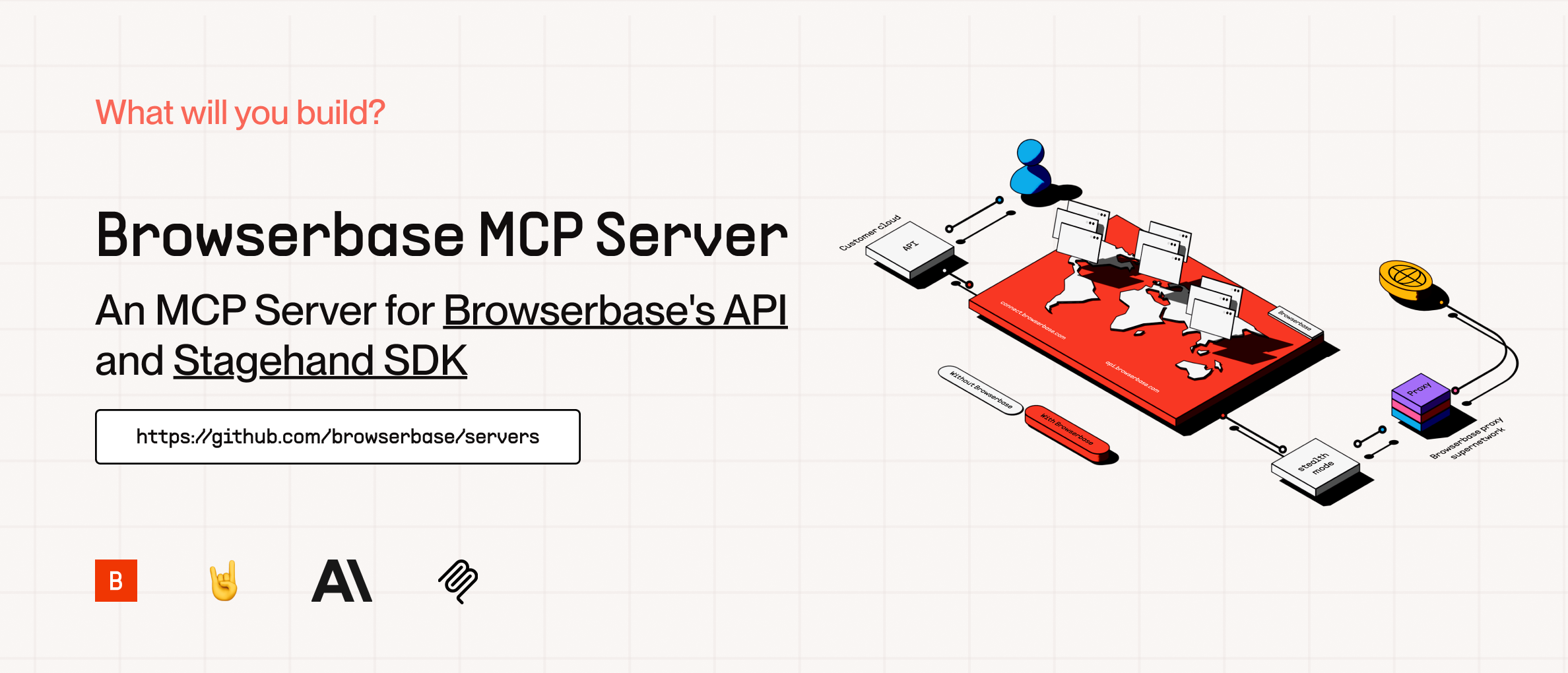
The Model Context Protocol (MCP) is an open protocol that enables seamless integration between LLM applications and external data sources and tools. Whether you're building an AI-powered IDE, enhancing a chat interface, or creating custom AI workflows, MCP provides a standardized way to connect LLMs with the context they need.
This server provides cloud browser automation capabilities using Browserbase and Stagehand. It enables LLMs to interact with web pages, take screenshots, extract information, and perform automated actions with atomic precision.
What's New in Stagehand v3
Powered by Stagehand v3.0, this MCP server now includes:
- 20-40% Faster Performance: Speed improvements across all core operations (
act,extract,observe) through automatic caching - Enhanced Extraction: Targeted extraction and observation across iframes and shadow roots
- Improved Schemas: Streamlined extract schemas for more intuitive data extraction
- Advanced Selector Support: CSS selector support with improved element targeting
- Multi-Browser Support: Compatible with Playwright, Puppeteer, and Patchright
- New Primitives: Built-in
page,locator,frameLocator, anddeepLocatorfor simplified automation - Experimental Features: Enable cutting-edge capabilities with the
--experimentalflag
For more details, visit the Stagehand v3 documentation.
Features
| Feature | Description |
|---|---|
| Browser Automation | Control and orchestrate cloud browsers via Browserbase |
| Data Extraction | Extract structured data from any webpage |
| Web Interaction | Navigate, click, and fill forms with ease |
| Screenshots | Capture full-page and element screenshots |
| Model Flexibility | Supports multiple models (OpenAI, Claude, Gemini, and more) |
| Vision Support | Use annotated screenshots for complex DOMs |
| Session Management | Create, manage, and close browser sessions |
| High Performance | 20-40% faster operations with automatic caching (v3) |
| Advanced Selectors | Enhanced CSS selector support for precise element targeting |
How to Setup
Quickstarts:
Add to Cursor
Copy and Paste this link in your Browser:
cursor://anysphere.cursor-deeplink/mcp/install?name=browserbase&config=eyJjb21tYW5kIjoibnB4IEBicm93c2VyYmFzZWhxL21jcCIsImVudiI6eyJCUk9XU0VSQkFTRV9BUElfS0VZIjoiIiwiQlJPV1NFUkJBU0VfUFJPSkVDVF9JRCI6IiIsIkdFTUlOSV9BUElfS0VZIjoiIn19
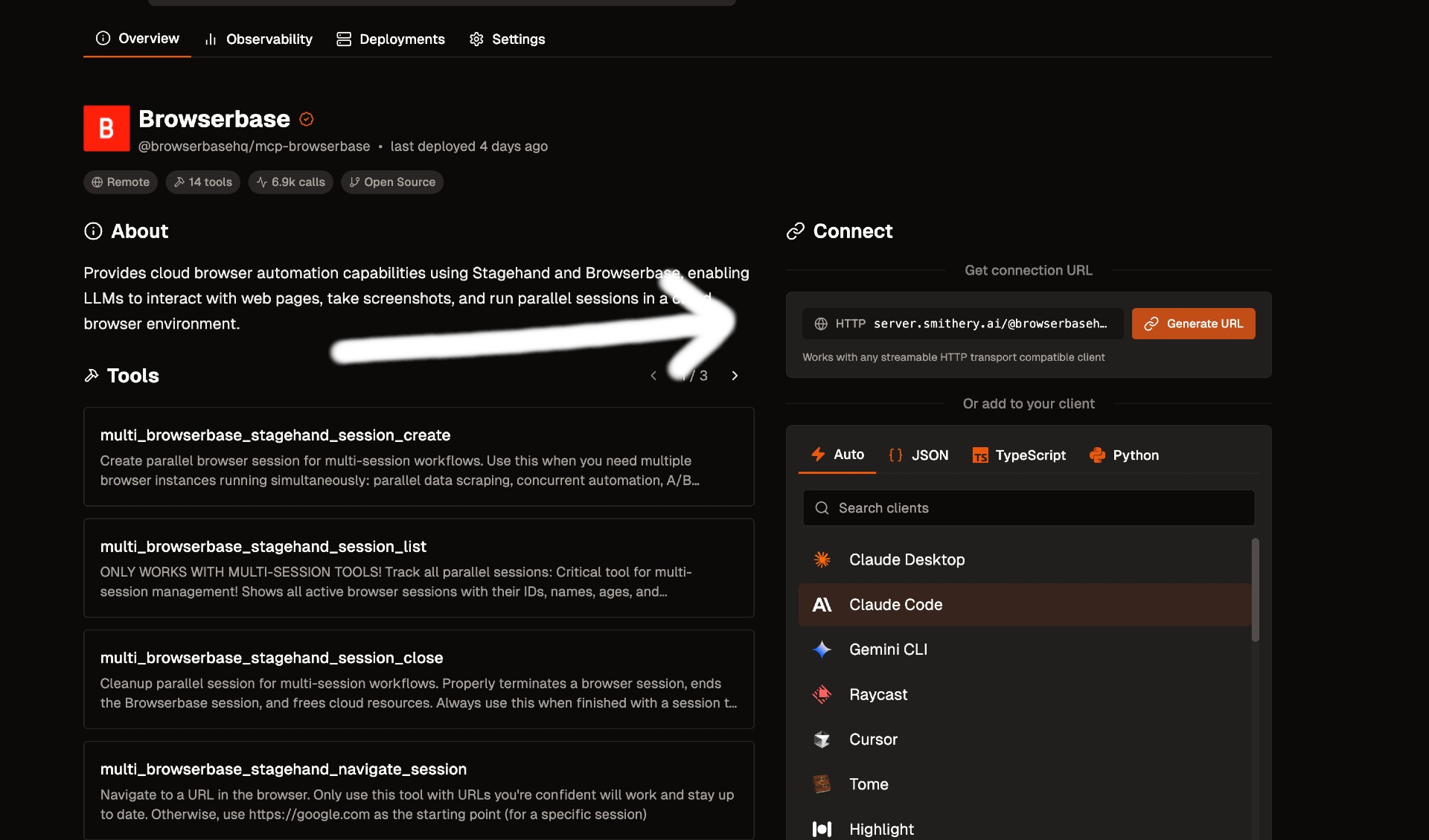
We currently support 2 transports for our MCP server, STDIO and SHTTP. We recommend you use SHTTP with our remote hosted url to take advantage of the server at full capacity.
SHTTP:
To use the Browserbase MCP Server through our remote hosted URL, add the following to your configuration.
Go to smithery.ai and enter your API keys and configuration to get a remote hosted URL. When using our remote hosted server, we provide the LLM costs for Gemini, the best performing model in Stagehand.
If your client supports SHTTP:
{
  "mcpServers": {
    "browserbase": {
      "type": "http",
      "url": "your-smithery-url.com"
    }
  }
}
If your client doesn't support SHTTP:
{
  "mcpServers": {
    "browserbase": {
      "command": "npx",
      "args": ["mcp-remote", "your-smithery-url.com"]
    }
  }
}
STDIO:
You can either use our Server hosted on NPM or run it completely locally by cloning this repo.
❗️ Important: If you want to use a different model you have to add --modelName to the args and provide that respective key as an arg. More info below.
To run on NPM (Recommended)
Go into your MCP Config JSON and add the Browserbase Server:
{
  "mcpServers": {
    "browserbase": {
      "command": "npx",
      "args": ["@browserbasehq/mcp-server-browserbase"],
      "env": {
        "BROWSERBASE_API_KEY": "",
        "BROWSERBASE_PROJECT_ID": "",
        "GEMINI_API_KEY": ""
      }
    }
  }
}
That's it! Reload your MCP client and Claude will be able to use Browserbase.
To run 100% local:
Option 1: Direct installation
# Clone the Repo
git clone https://github.com/browserbase/mcp-server-browserbase.git
cd mcp-server-browserbase

# Install the dependencies and build the project
npm install && npm run build
Option 2: Docker
# Clone the Repo
git clone https://github.com/browserbase/mcp-server-browserbase.git
cd mcp-server-browserbase

# Build the Docker image
docker build -t mcp-browserbase .
Then in your MCP Config JSON run the server. To run locally we can use STDIO or self-host SHTTP.
STDIO:
Using Direct Installation
To your MCP Config JSON file add the following:
{
  "mcpServers": {
    "browserbase": {
      "command": "node",
      "args": ["/path/to/mcp-server-browserbase/cli.js"],
      "env": {
        "BROWSERBASE_API_KEY": "",
        "BROWSERBASE_PROJECT_ID": "",
        "GEMINI_API_KEY": ""
      }
    }
  }
}
Using Docker
To your MCP Config JSON file add the following:
{
  "mcpServers": {
    "browserbase": {
      "command": "docker",
      "args": [
        "run",
        "--rm",
        "-i",
        "-e",
        "BROWSERBASE_API_KEY",
        "-e",
        "BROWSERBASE_PROJECT_ID",
        "-e",
        "GEMINI_API_KEY",
        "mcp-browserbase"
      ],
      "env": {
        "BROWSERBASE_API_KEY": "",
        "BROWSERBASE_PROJECT_ID": "",
        "GEMINI_API_KEY": ""
      }
    }
  }
}
Then reload your MCP client and you should be good to go!
Configuration
The Browserbase MCP server accepts the following command-line flags:
| Flag | Description |
|---|---|
--proxies | Enable Browserbase proxies for the session |
--advancedStealth | Enable Browserbase Advanced Stealth (Only for Scale Plan Users) |
--keepAlive | Enable Browserbase Keep Alive Session |
--contextId <contextId> | Specify a Browserbase Context ID to use |
--persist | Whether to persist the Browserbase context (default: true) |
--port <port> | Port to listen on for HTTP/SHTTP transport |
--host <host> | Host to bind server to (default: localhost, use 0.0.0.0 for all interfaces) |
--browserWidth <width> | Browser viewport width (default: 1024) |
--browserHeight <height> | Browser viewport height (default: 768) |
--modelName <model> | The model to use for Stagehand (default: gemini-2.0-flash) |
--modelApiKey <key> | API key for the custom model provider (required when using custom models) |
--experimental | Enable experimental features (default: false) |
These flags can be passed directly to the CLI or configured in your MCP configuration file.
NOTE:
Currently, these flags can only be used with the local server (npx @browserbasehq/mcp-server-browserbase or Docker).
Using Configuration Flags with Docker
When using Docker, you can pass configuration flags as additional arguments after the image name. Here's an example with the --proxies flag:
{
  "mcpServers": {
    "browserbase": {
      "command": "docker",
      "args": [
        "run",
        "--rm",
        "-i",
        "-e",
        "BROWSERBASE_API_KEY",
        "-e",
        "BROWSERBASE_PROJECT_ID",
        "-e",
        "GEMINI_API_KEY",
        "mcp-browserbase",
        "--proxies"
      ],
      "env": {
        "BROWSERBASE_API_KEY": "",
        "BROWSERBASE_PROJECT_ID": "",
        "GEMINI_API_KEY": ""
      }
    }
  }
}
You can also run the Docker container directly from the command line:
docker run --rm -i \
  -e BROWSERBASE_API_KEY=your_api_key \
  -e BROWSERBASE_PROJECT_ID=your_project_id \
  -e GEMINI_API_KEY=your_gemini_key \
  mcp-browserbase --proxies
Configuration Examples
Proxies
Here are our docs on Proxies.
To use proxies, set the --proxies flag in your MCP Config:
{
  "mcpServers": {
    "browserbase": {
      "command": "npx",
      "args": ["@browserbasehq/mcp-server-browserbase", "--proxies"],
      "env": {
        "BROWSERBASE_API_KEY": "",
        "BROWSERBASE_PROJECT_ID": "",
        "GEMINI_API_KEY": ""
      }
    }
  }
}
Advanced Stealth
Here are our docs on Advanced Stealth.
To use advanced stealth, set the --advancedStealth flag in your MCP Config:
{
  "mcpServers": {
    "browserbase": {
      "command": "npx",
      "args": ["@browserbasehq/mcp-server-browserbase", "--advancedStealth"],
      "env": {
        "BROWSERBASE_API_KEY": "",
        "BROWSERBASE_PROJECT_ID": "",
        "GEMINI_API_KEY": ""
      }

...(truncated)